
Native Sales app coming soon
DRAW IT.
PRICE IT.
SHOW IT
IN 3D.
Keep the countertop conversation moving from the customer’s details to a priced drawing and a 3D presentation. SlabOS Sales connects those steps to the same quote, using the shop’s existing quoting engine.
Start the quote
Give the work a home.
Name the quote and choose an account, or start a standalone quote. Sales can bring account details into the customer and site fields, and keeps the selected price list with the quote. Check the details before entering the editor.
- Capture the contact, mobile number, email and site address.
- Use the account or shop default price list, or make an available selection.
- Connect an existing job when that is the intended workflow.
Draw & price
The same engine. A smaller screen.
The mobile workspace opens the same five-step quote editor used on desktop. Work on the drawing and pricing, then save. The phone wrapper fits the drawing on open and screen rotation; leaving the editor returns to the Sales quote.
- Keep drawing, pricing and saved quote data together.
- Use a phone or tablet in the orientation that suits the work.
- Review the saved quote before presenting or sending it.
View in 3D
One tap into the saved design.
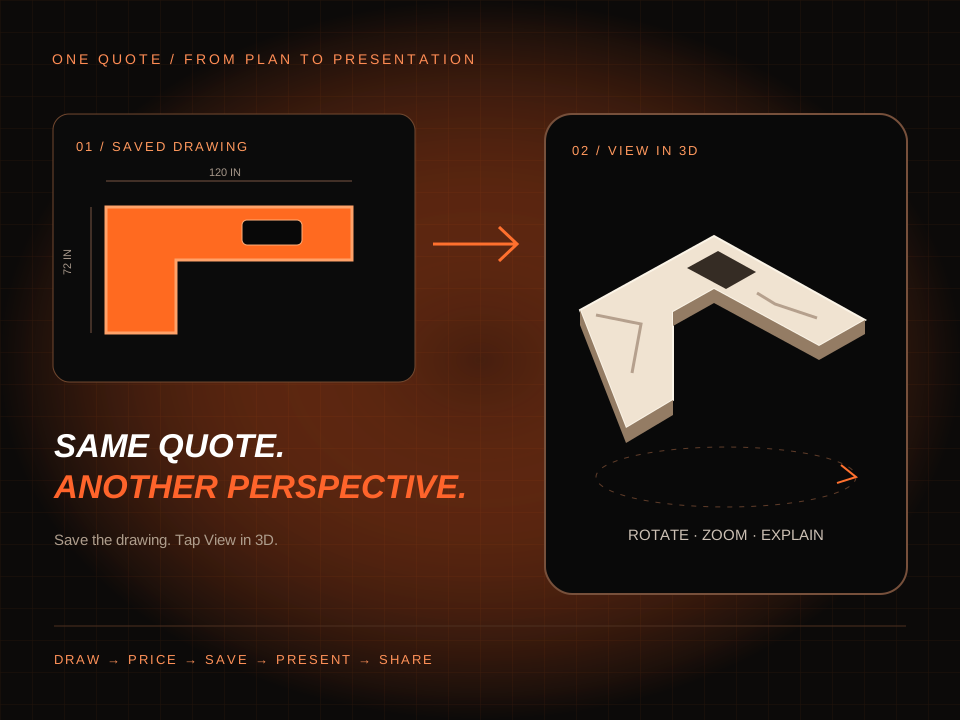
On the quote, choose View in 3D. The viewer presents the saved drawing with its available geometry and material context. Drag to rotate, pinch to zoom, and walk the customer through the countertop layout.
- The quote needs a saved drawing before the model can be shown.
- A saved published 3D builder layout is used when available; otherwise the primary drawn layout is used.
- This is a presentation view. Edit the design through Edit drawing, then save the changes.
Share & follow up
Send the quote. Keep its context.
Return to the quote to preview the document, download it or get the customer link. Available send actions use the shop’s templates and the quote’s current state. Follow recorded customer activity from the Sales workspace as the conversation continues.
- Check the customer details and document before sending.
- Keep proposal, contract and customer-link actions with the quote.
- Return to Today and follow-ups for the next conversation.
Questions about Mobile Quoting & Live 3D
Is mobile quoting a separate price calculator?
No. Sales opens the same drawing and pricing editor used by the desktop quote workflow. The mobile wrapper adapts how the editor is opened and how the salesperson returns to the quote.
Does View in 3D create a model from a customer photo?
No. It presents the quote’s saved countertop drawing or saved published 3D layout. A blank quote first needs a drawing created and saved through the editor.
Can I edit the countertop inside the 3D viewer?
The Sales 3D viewer is read-only. Rotate and zoom to present the design; use Edit drawing to change the quote geometry and save it.
Can the office and salesperson work from the same quote?
The Sales editor uses the same saved quote and pricing workflow as desktop. Access depends on the shop account and its permissions. This page describes connected online work, not offline quoting.
SlabOS Sales
The next conversation.
The same connected shop.
Walk through a quote, a customer signal and the next step with our team.
See Sales in a demo ↗Published by SlabOS · Workflow documentation reviewed October 6, 2026. Illustrations use demonstration data. Shop sign-in and appropriate access are required. Native Sales app coming soon.