
Scan the pieces.
Check the load.
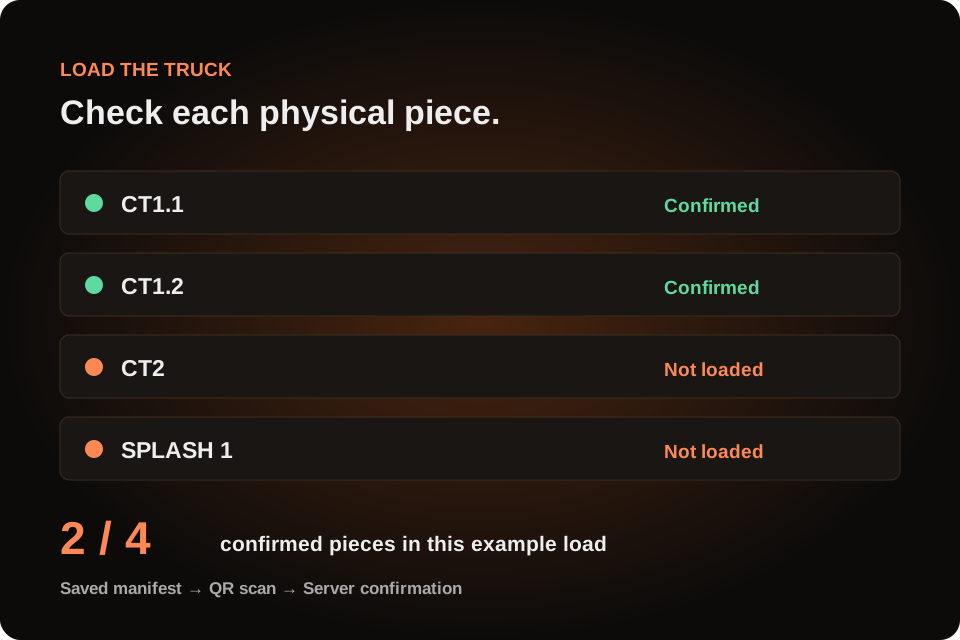
A label count is useful. A checked load is better. Load the Truck connects the job’s saved piece list with confirmed QR scans, so the crew can see what has been loaded and what still belongs on the truck.
Prepare the manifest
Start with the pieces you expect.
Save the job’s Piece Labels list before loading. For jobs with a sold SlabOS drawing, expected countertops include the primary quote, accepted change orders and won additional quotes in that production scope. Seam pieces and repeated units count as physical pieces; saved strips and splashes also belong in the load list. Missing or ambiguous bindings need office review.
- Tile counters are excluded from countertop piece matching.
- Duplicate and missing bindings prevent a reliable complete check.
- External-drawing-only jobs rely on the office-confirmed saved label list.
Scan and confirm
A beep is only the start.
Open Load the Truck from the crew’s job workflow. Use the camera, a paired scanner or the QR-link entry. A piece is counted after the server confirms the scan. Face and edge labels for the same physical piece share its identity, so an extra label copy is not an extra countertop.
- The scan must belong to the job being loaded.
- Wrong-job, removed and stale-revision labels need attention.
- Review the checklist instead of relying only on the number of scans.
Handle a changed load
Unload it. Keep the record.
Use Unload to undo a loaded piece. Start a new load when a fresh checklist is needed; the prior actions remain in the audit. If labels or drawings change, previous confirmations may no longer describe the current pieces. Resolve those changes and use current labels before calling the load complete.
- A changed drawing can invalidate earlier loading evidence.
- Current label identity and revision matter.
- The checklist supports the crew’s physical loading check; it does not inspect stone condition.
Know the scope
Whole job. Clear responsibility.
The current truck checklist covers the whole job. Piece Labels can print phase-based loading numbers, but that does not make the truck screen a separate phase checklist. For a split installation, the office and crew should review the intended scope together and avoid treating a phase total as a whole-job completion signal.
- Use job permissions and the normal crew access workflow.
- Confirm external-drawing coverage in the office.
- Review the actual pieces, not just a green total.
Load the Truck questions
Does reprinting a label add another required piece?
No. Copies for the same saved piece share its identity. The saved physical-piece list determines the manifest.
Can a job using an outside template drawing use loading?
Yes, with a complete saved piece list. The office must confirm coverage because an outside drawing alone does not provide independent SlabOS drawing verification.
Does it count only one phase?
The current loading checklist checks the whole job. Phase-specific label numbering is a separate field and may show a different total.
See it with your shop’s workflow
Bring the job.
Walk through the handoff.
See the records, the decisions and the next step in a SlabOS demo.
Book a demo ↗Published by SlabOS · Workflow documentation reviewed October 6, 2026. Illustrations and clip examples use demonstration data.