
Every piece.
Its own identity.
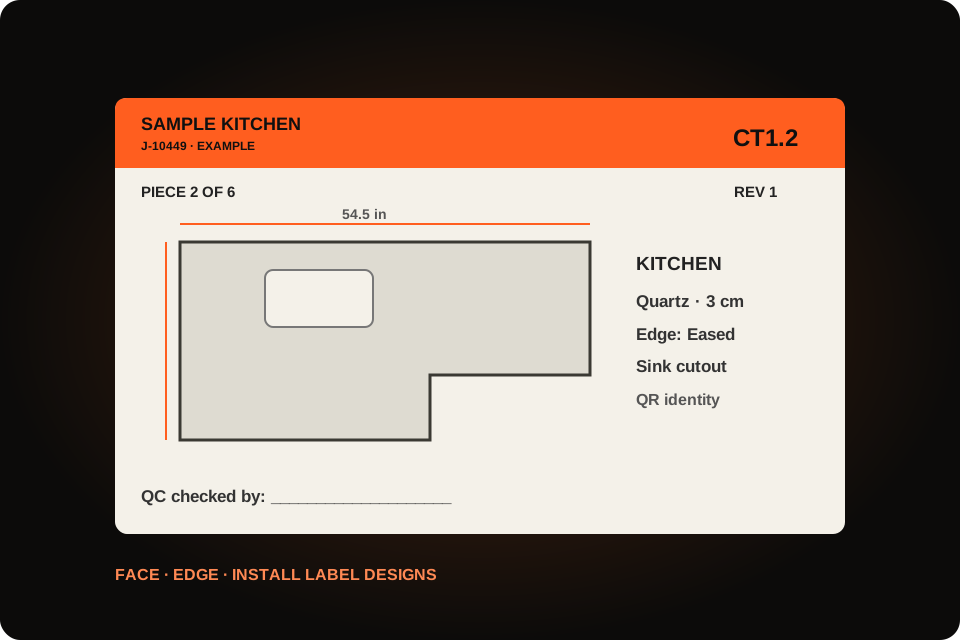
The shop drawing describes the job. Piece Labels carries the right part of that drawing onto each physical piece: its dimensions, edge notes, material, job and QR identity. Capture the pieces, review their details, then prepare the label batch.
Capture the physical pieces
One drawing. Several pieces.
Open Piece Labels from the job and choose Capture from drawing. Draw a numbered box around each physical piece, including its dimension strings and edge callouts. Work across the pages of the shop drawing, or add a piece without a drawing when you need a typed record. The source file stays separate from the saved pieces and label batches.
- A captured box supplies the drawing shown on the label.
- Separate seam pieces, repeated units, strips and splashes need their own entries.
- A typed piece does not automatically acquire a drawing from quote geometry.
Review the match
The right facts on the right piece.
SlabOS compares eligible drawing captures with physical pieces in the job’s sold drawing. Strong agreement in dimensions, outline and cutouts can identify a match. When the match is uncertain, the office chooses the countertop. A manual choice stays in control. Bound pieces can draw relevant material, edge, splash and fixture details from their own part of the quote.
- Typed piece values take priority over inherited values.
- Review the values shown before printing, especially suggested glue color.
- If a revision removes the bound countertop, choose its match again.
Design and prepare
Face. Edge. Install.
Settings → Templates → Piece Labels provides face, edge and install label designs. Set the label size, orientation, margins and resolution; arrange the drawing, job fields, material details, QR and QC area. The install starter includes fields such as builder, site address, backsplash, sink type and glue color. Prepare labels to resolve current details into a saved print batch.
- PDF and supported Zebra output use the label renderer.
- Reprinting a prepared batch keeps that batch’s saved values.
- Prepare a new batch to pick up revised job or quote details.
Count and load
Copies are not extra pieces.
Piece N of M comes from the saved physical-piece list, so reprinting one label does not turn it into Piece 1 of 1. Face and edge copies identify the same piece. A separate loading count can follow phase ownership where it exists. Load the Truck checks the saved job manifest; its current checklist covers the whole job, so a phase label count and that checklist can have different totals.
- Save the complete list before relying on a load count.
- For external-drawing jobs, the office must confirm the list covers the whole job.
- Use the dedicated truck-loading workflow to record confirmed scans.
Piece Labels questions
Are Piece Labels the same as slab inventory labels?
No. Slab labels identify stock in the yard. Piece Labels identify the individual fabricated pieces belonging to a job, including their drawing crops and installation details.
Can I keep my original shop drawing?
Yes. Captures, saved revisions and prepared batches are separate from the original file. If the source drawing is replaced, affected captures need review and recapture before new labels are prepared.
Does an automatic match replace the office’s selection?
No. Manual choices take priority. Ambiguous matches need office review before the label can rely on the corresponding quote details.
See it with your shop’s workflow
Bring the job.
Walk through the handoff.
See the records, the decisions and the next step in a SlabOS demo.
Book a demo ↗Published by SlabOS · Workflow documentation reviewed October 6, 2026. Illustrations and clip examples use demonstration data.