
Know the stage.
See the reason.
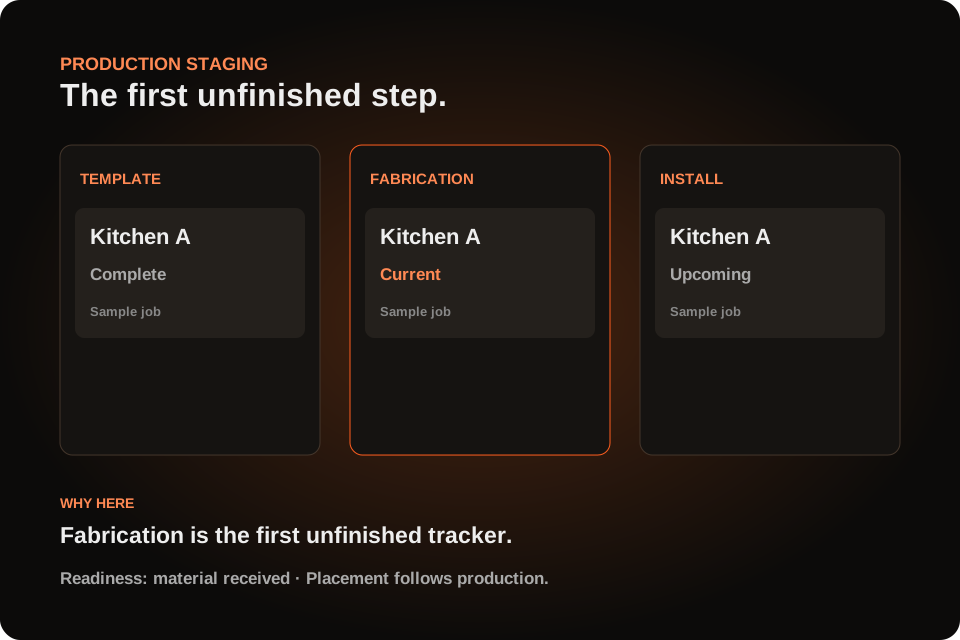
Pipeline → Staging brings production progress into one board. Each job lands at its first unfinished enabled production tracker. Open “Why here” to see the reason, then follow the job record to resolve the work that is holding it there.
Find the current stage
The first unfinished step.
Staging follows the job’s enabled production trackers in their saved order and uses their completion rules. A job appears once in Jobs view. Completed work can move out of the active view, while uncertain records are called out for review. The board reflects production evidence from the job; time passing does not complete a tracker.
- The current tracker is marked Current.
- Open Why here to inspect the placement and its evidence.
- Update the underlying job or activity to change the facts the board reads.
Read the readiness
Stone arriving is not cutting finished.
Material ordering and receiving appear as readiness signals. They do not become production lanes or silently complete fabrication. A scheduled or confirmed appointment also does not mean its production work is finished. Staging keeps those distinctions visible so the office can see both the stage and what still needs attention.
- A completed tracker with an open linked activity can show Check records.
- Later progress with an unfinished earlier prerequisite is flagged.
- An older job is not treated as complete merely because it is overdue.
Separate the phases
One job. Different handoffs.
Switch to Phases view when a project runs in separate scopes. It shows child phase cards without counting the parent job a second time. Phase activities and applicable trackers describe that phase’s progress. Shared quote acceptance and material evidence retain their scope; partially received shared material is not proof that every phase is ready.
- Use Jobs view for one whole-job card.
- Use Phases view to inspect the individual phase handoff.
- Phase filtering applies to the loaded page; load more when reviewing a larger set.
Save the working view
A board for the morning meeting.
Choose filters for production readiness, people, location, activities and approvals. Save personal or shared staging views with the card fields, density, sorting and column order your team uses. Sharing a view does not grant extra access to jobs. Staging remains a read-only view: it does not change schedules, inventory or tracker completion by moving cards.
- Keep the material question visible for the office.
- Keep the current stage and exception visible for production.
- Use the job record for the action and the staging board for the overview.
Job Staging questions
Can I drag a job to mark a production stage complete?
Staging is a read-only projection of the underlying records. Complete the relevant tracker or activity through its normal workflow; the board then reflects that evidence.
Is staging the same as the calendar?
No. The calendar describes scheduled activities. Staging describes production progress, with readiness and record conflicts shown alongside it.
Does a received purchase order complete a production stage?
No. Receiving is material evidence. Production completion still follows the job’s enabled trackers and their rules.
See it with your shop’s workflow
Bring the job.
Walk through the handoff.
See the records, the decisions and the next step in a SlabOS demo.
Book a demo ↗Published by SlabOS · Workflow documentation reviewed October 6, 2026. Illustrations and clip examples use demonstration data.